Back to guides

Higgsfield Hotel Lobby: How It Works, and a Simpler Way

Higgsfield Hotel Lobby: How people make the Hotel Lobby AI video on Higgsfield (Genjutsu recreate or motion transfer), and how to make a two-person version from two photos instead.

Oct 1, 2026

Updated Oct 3, 2026

The short answer

Choose an editing or generation workflow around your own photos and original music. Our two-photo studio creates a new performance with an original AI-generated song and beat.

What's new on this page

  • — Added real screenshots of the video maker and a picture for each step.
  • — Page published

Higgsfield Hotel Lobby: Choosing a workflow

Higgsfield is a general video platform for people who want to direct scenes with models, prompts and reference material. Use reference footage you created or have permission to use. Review the current tool settings and pricing in its app before starting.

For a Hotel Lobby trend style, describe a bright orange studio, two microphones and two consenting performers. Build a new scene around your own photos rather than recasting a real artist's performance.

Make a video from two photos

  1. Add one clear photo of each person, or one photo of both of you.
  2. Choose the orange studio and enter a topic, such as a birthday or an inside joke.
  3. Review the quality and credit settings, then make the video.

AI Rap Video Generator pairs the scene with an original AI-generated song and beat. The lyrics and generated vocals belong to this new performance; no real artist's voice or original recording is supplied.

Before sharing

Use your own photos and the generated music. Everyone shown must agree to appear. Keep the vertical format for short-form posts.

Open the Hotel Lobby studio or read the step-by-step guide.

Higgsfield is a trademark of its owner.
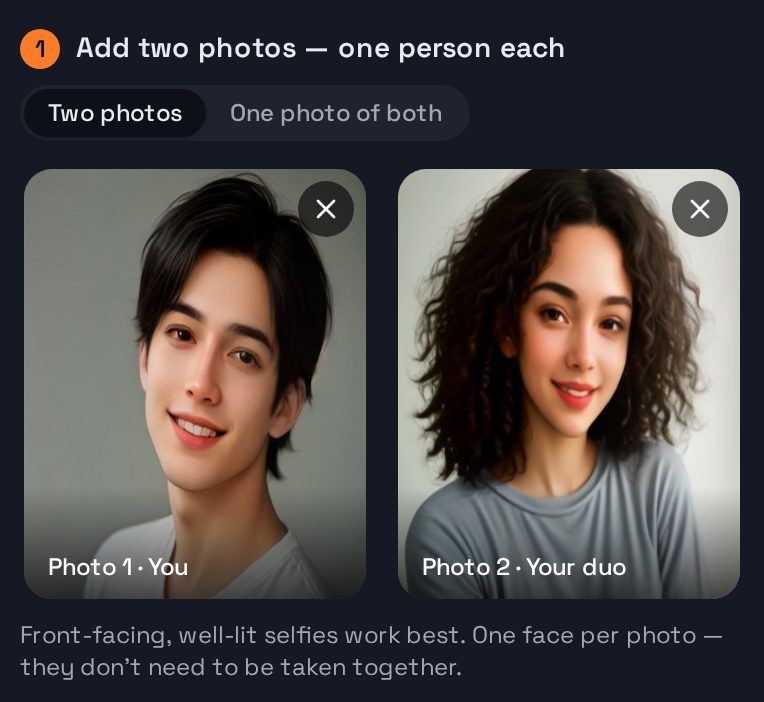
Step 1 in the studio: a front-facing selfie in each of the two photo slots
Step 1: one photo of each person. Ordinary selfies work, and they don’t need to be taken together.
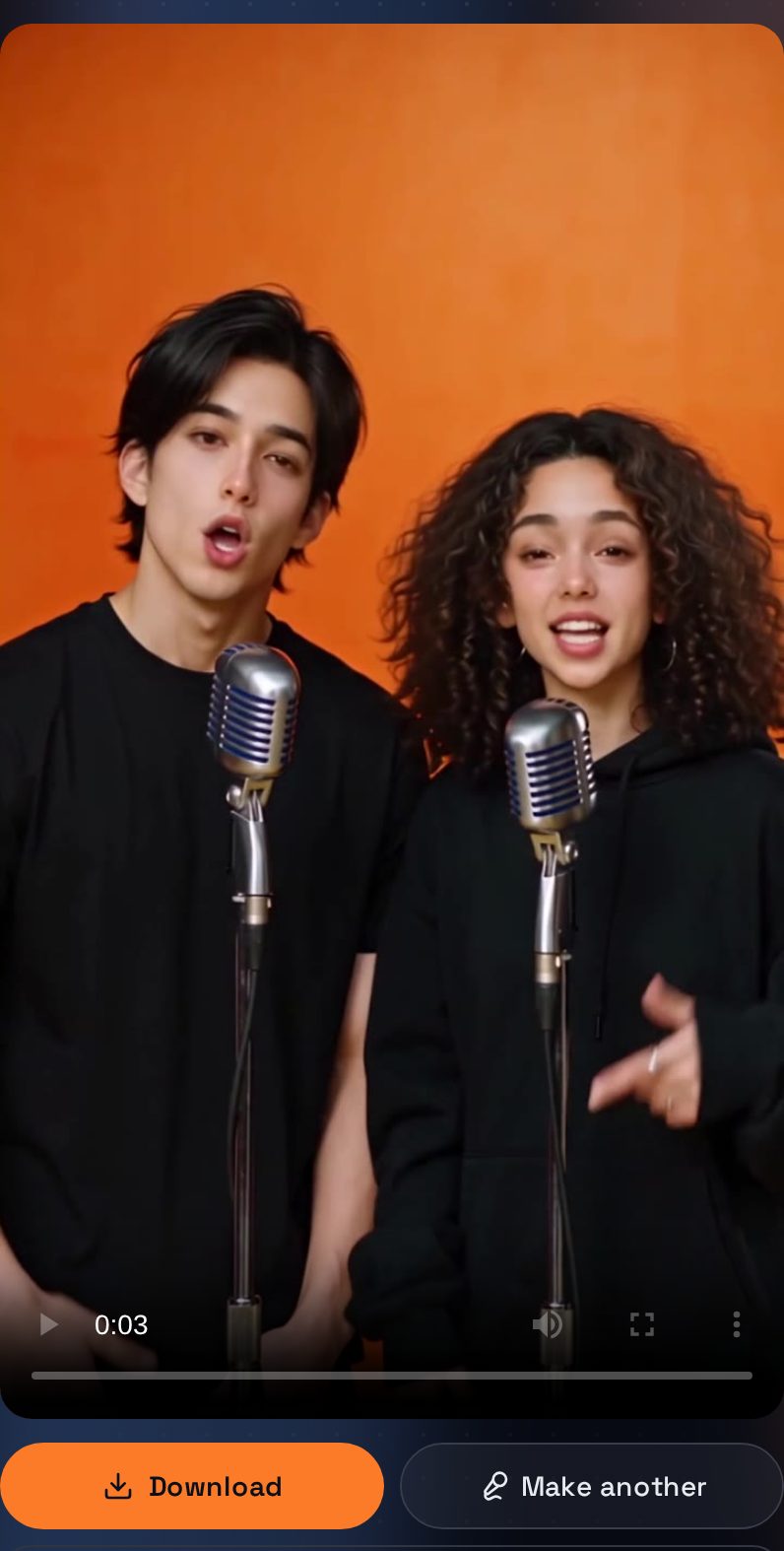
The finished video in the studio: the two people from the photos rapping on their own mics in an orange booth, with Download and Make another buttons
The result, about 3 minutes later: both people from the photos, each on a mic, ready to download.

Higgsfield Hotel Lobby: a practical project checklist

Choose your project around the material you can provide. If you have only still portraits, start by comparing workflows that accept photographs. If you already recorded a performance, list the parts you want to keep and the parts you want to change. This makes the choice more concrete than selecting a platform from a sample clip alone. The Hotel Lobby AI apps comparison is a useful next stop for thinking through those inputs.

For our two-photo workflow, use a clear portrait of each person or a single photograph showing both. Look for unobstructed faces and even lighting. Avoid pictures where one person is tiny in the background, and do not upload someone simply because their photograph is easy to find online. Ask permission first. A recognizable face and a simple topic give you a clearer starting point for reviewing the generated performance.

Plan the topic before you generate. A short birthday greeting or one friendly joke is easier to assess than a request covering several unrelated events. Decide whether the result is intended for a private message or a public post, and leave out anything sensitive. After generation, watch the complete clip and listen to the words before sharing. Check that the tone fits the people involved and that the scene reads as an AI-generated performance.

On AI Rap Video Generator, settings determine the credit cost. At 720p, 5, 8, 10, 12 and 15 seconds cost 5, 7, 9, 10 and 13 credits. At 480p the corresponding costs are 2, 4, 4, 5 and 6 credits. One-time packs start at $6.99 for 14 credits; see all credit packs before budgeting for multiple attempts. Payments are processed by Creem.

A failed or moderation-rejected generation automatically returns its credits to the account. Payment refund requests follow the separate Refund Policy. Keep a note of your intended duration and resolution when comparing results so a change in settings does not obscure what you learned from the first clip. Compare the face detail, framing and overall mood, then decide whether another version would add something useful to the project.